
WooCommerce Integration
Breeze Payment Gateway for WooCommerce
Latest Version: 2.1.0
https://github.com/breeze-com/breeze-woocommerce-plugin/releases
Introduction
The Breeze Payment Gateway for WooCommerce provides seamless integration between your WooCommerce store and the Breeze payment platform. This plugin enables you to accept payments securely through Breeze's robust payment processing system, supporting multiple payment methods including crypto, Apple Pay, Google Pay, and traditional card payments.
Customers will be redirected to Breeze's secure payment page to complete their transactions, ensuring PCI compliance and enhanced security for your store.
Features
✅ Full Breeze API integration with all core endpoints
✅ Secure payment page redirects with SSL support
✅ Webhook support for real-time payment notifications
✅ Test mode and live mode support for safe development
✅ Internationalization ready for global deployment
✅ WooCommerce Blocks compatible for modern checkout experiences
✅ Multiple payment methods including crypto, Apple Pay, Google Pay, and card payments
Requirements
Before installing the Breeze Payment Gateway, ensure your system meets the following requirements:
- WordPress: 5.8 or higher
- WooCommerce: 6.0 or higher
- PHP: 7.4 or higher
- SSL Certificate: Required for live payments
- Breeze Account: Active account with API access
Installation
- Download the
woocommerce-gateway-breezeplugin - Upload the folder to
/wp-content/plugins/ - Activate the plugin through the Plugins menu in WordPress
- Navigate to WooCommerce > Settings > Payments
- Enable Breeze Payment Gateway
- Click Manage to configure settings
Configuration
Accessing Settings
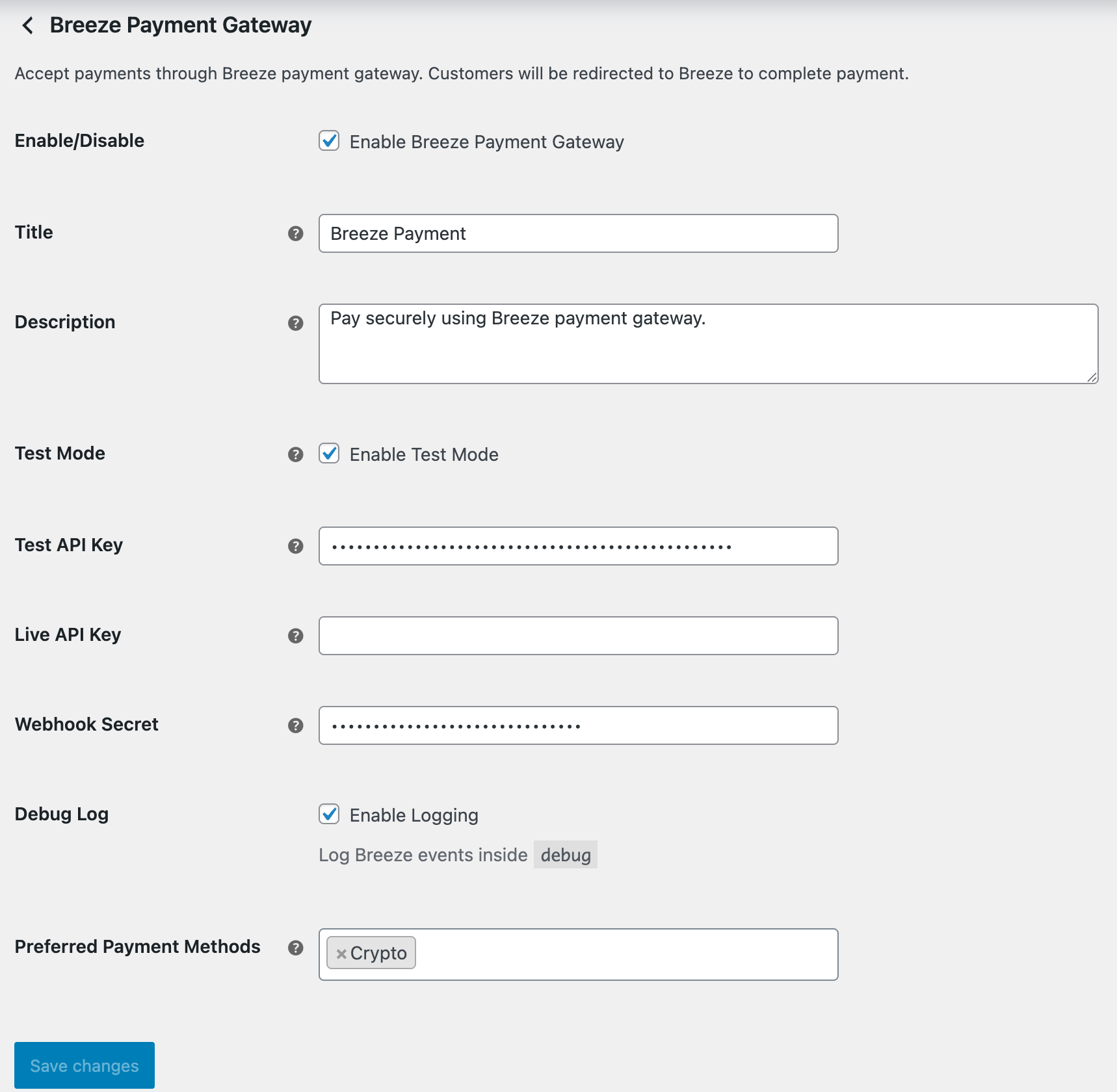
Navigate to WooCommerce > Settings > Payments > Breeze Payment Gateway to access the configuration panel.
General Settings
| Setting | Description |
|---|---|
| Enable/Disable | Enable or disable the Breeze Payment Gateway for your store |
| Title | The title customers see during checkout (default: "Breeze Payment") |
| Description | Payment method description shown at checkout (default: "Pay securely using Breeze payment gateway.") |
API Credentials
| Setting | Description |
|---|---|
| Test Mode | Enable to use test API credentials for development and testing. Disable for production |
| Test API Key | Your Breeze sandbox environment API key |
| Live API Key | Your Breeze production API key |
| Webhook Secret | Your Webhook Secret Key for verifying webhooks with Breeze |
Getting Your API Key
- Log in to your Breeze Dashboard
- Navigate to Developer > API Keys
- Generate a new API key
- Copy the key and paste it into the appropriate field (Test or Live) in your WooCommerce settings
- Add your Webhook call back url eg.
https://yoursite.com/?wc-api=breeze_payment_gateway - Copy the webhook secret key and paste into the webhook field
- Save your changes
Payment Method Preferences
The plugin supports configuring Preferred Payment Methods that will be displayed on the Breeze checkout page:
- Crypto - Accept cryptocurrency payments
- Apple Pay - Enable Apple Pay for iOS and macOS users
- Google Pay - Enable Google Pay for Android users
- Card (Manual Card Payment) - Accept credit/debit card payments
These preferences help streamline the checkout experience for your customers.
Debug Options
| Setting | Description |
|---|---|
| Debug Log | Enable logging for troubleshooting. Logs are saved to WooCommerce logs and can be accessed via WooCommerce > Status > Logs |
When enabled, the plugin will log:
- API requests and responses
- Payment page creation events
- Webhook notifications
- Errors and exceptions
Note: Debug logging should be disabled in production environments to avoid performance impacts and potential security concerns.
Refunds
Important Notice
Refunds must be processed manually through your Breeze dashboard.
Refund Process
- When attempting to refund through WooCommerce, a notification message will inform the admin to process the refund in Breeze
- Log in to your Breeze Dashboard
- Process the refund through Breeze's interface
- Update the order status in WooCommerce manually if needed
Internationalization
The plugin is translation-ready:
- Text Domain:
breeze-payment-gateway - POT File:
languages/breeze-payment-gateway.pot
Testing
Follow these steps to test the plugin before going live:
Test Scenarios
Scenario 1: Sandbox Payment
- Add product to cart
- Proceed to checkout
- Select Breeze Payment
- Complete payment on Breeze page
- Verify redirect back to store
- Check order status is "Processing"
- Verify order in Breeze dashboard
Scenario 2: Production Payment
- Verify with Breeze all commercial requirements have been satisfied and you have a production account generated
- Disable Test Mode in plugin settings
- Add Live API Key from Breeze dashboard
- Disable Debug Log (optional, but recommended for performance)
- Save changes
- Place a small test order to verify live mode works
- Monitor initial orders closely
Support
- Reach out to Breeze customer support: [email protected]
Updated 5 months ago